Furniture dropshipping: integrations with your shop and order management software
You sell our furniture, and we dispatch it from our warehouse in Elbląg straight to your customer. You submit orders via the platform you already use — in-store, via your ordering software or via a file. You set it up once, via the partner portal.
Become a partnerYou only need to set this up once: partner portal → “Connect your shop”.
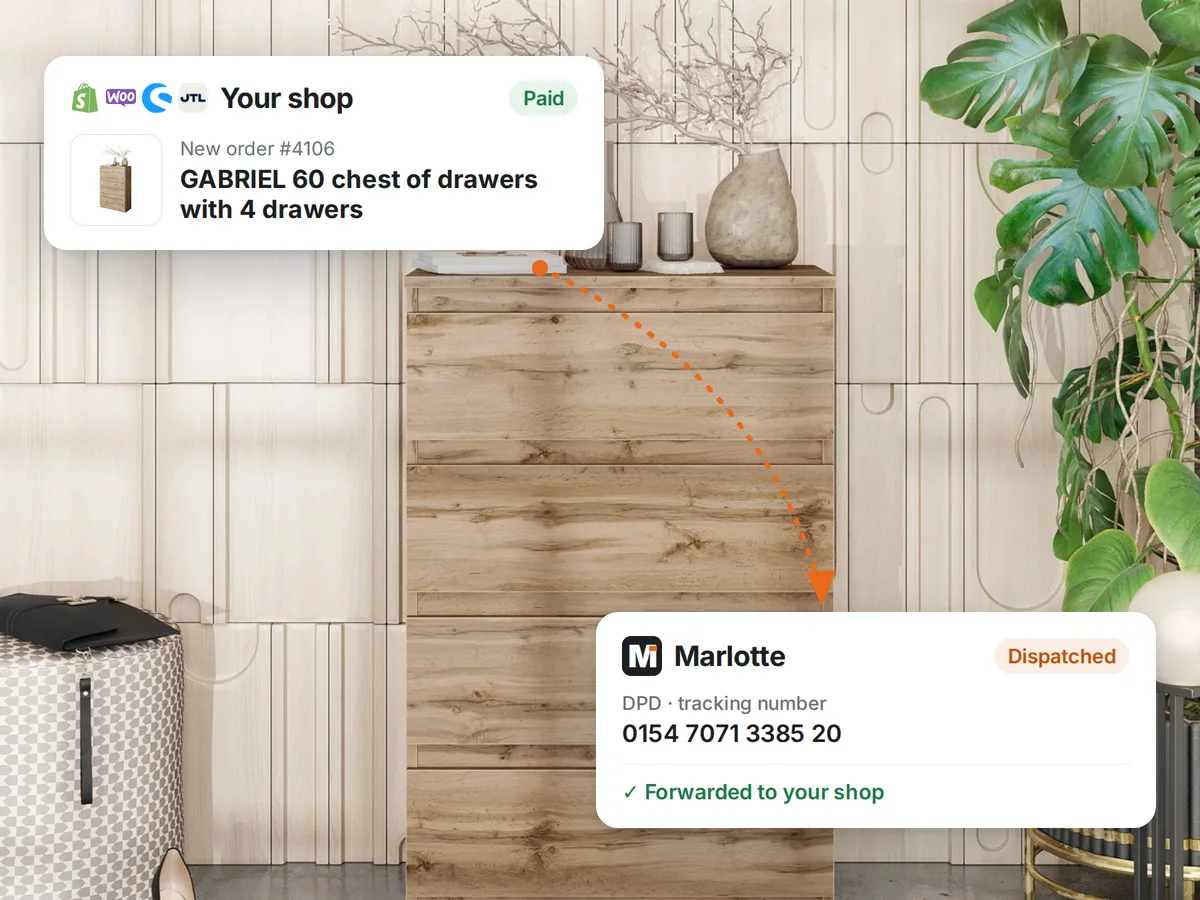
Integrations at a glance
At a glance: how orders reach us, how you receive the parcel tracking number, and how much work is involved on your end.
- Fully automaticOrders and tracking numbers are processed automatically
- Semi-automaticSome of the steps are carried out by your programme, and some by you
- Via fileFile exchange via the partner portal
- Coming soonWe’re planning this — let us know if you need it
| Integration | Level | Orders to us | Tracking number back | Products and stock levels | Your part |
|---|---|---|---|---|---|
 Shopify | Fully automatic | automatically | automatically | automatically | You can connect your shop in one click: simply request the app via the portal and you’ll receive an ‘Install’ button within 24 hours (you can also connect your shop yourself). We can upload the products for you |
 WooCommerce | Fully automatic | automatically | automatically | file | You paste the API key |
 Shopware | Fully automatic | automatically | automatically | file | You set up the integration in Shopware and enter the two keys in the portal |
 PrestaShop | Fully automatic | automatically | automatically | file | You enable the Webservice, create a key and paste it into the portal |
 Magento | Fully automatic | automatically | automatically | file | Set up the integration in Magento and paste the shop’s address and the four keys into the portal |
 eBay | Fully automatic | automatically | automatically | stock: automaticallyproducts: file | You click “Connect to eBay” in the portal and log in to your eBay seller account |
 Base (BaseLinker) | Fully automatic | automatically | automatically | file | You paste the API key and choose the status |
 JTL-Wawi — the “Marlotte” app | Fully automatic | automatically | automatically | file | Install the “Marlotte” app in JTL Hub; the non-cloud JTL option: orders via email with an XML file |
 Shoper | Fully automatic | automatically | automatically | automatically | You create a user account in Shoper with access to the WebAPI and enter their details on the portal. We can upload the products for you |
 bol.com | Fully automatic | automatically | automatically | file | You enter two API keys from your bol.com seller account into the portal |
 Kaufland | Fully automatic | automatically | automatically | file | By arrangement with us — please write to us |
 Xentral | Fully automatic | automatically | automatically | file | You create a token (Personal Access Token) in Xentral and paste it into the portal |
 Odoo | Fully automatic | automatically | automatically | file | Paste the Odoo address, database name, login and API key into the portal |
 plentyONE | Fully automatic | automatically | automatically | file | You create an API user in plentyONE and enter the system number, username and password in the portal |
 Picqer | Fully automatic | automatically | automatically | file | You create an API key and a manual carrier in Picqer, then enter the account address and key in the portal |
 Billbee | Fully automatic | automatically | automatically | file | You enable API access in Billbee and enter your login and API password in the portal |
| API (REST) | Fully automatic | automatically | automatically | automatically | Integration on your side |
 Afterbuy — email with file | Semi-automatic | email with file | file | file | You set our address and the file format |
 Shoptet and others — orders via link | Semi-automatic | automatically | file | file | You paste a permanent link to the order export into the portal |
| Import from a file — any system | Via file | file | file | file | You upload a file to the portal |
  Shoppingfeed, Lengow | Coming soon | — |
How the various integrations work
You set up each integration in the partner portal (“Connect your shop”) by following the step-by-step instructions.
Shopify
- Orders
- Automatically, every 5 minutes. We only include items featuring our products.
- Tracking number
- In the shop, the order is marked as dispatched, with a tracking number and link, and the customer receives a notification from the shop.
- On your side
- You can connect your shop in just one click: simply request the app via the portal, and within 24 hours you’ll receive an ‘Install’ button. You can also connect your shop yourself by creating the app in the Dev Dashboard. If you’d like, we can also upload our products to your shop for you — you choose the models, the mark-up and the language of the descriptions, and we update the prices and stock levels every hour.
WooCommerce
- Orders
- Automatically, every 5 minutes. We only include items featuring our products.
- Tracking number
- The customer receives a message containing a tracking number and link. An order consisting solely of our products is marked as “Completed”.
- On your side
- Paste the WooCommerce REST API key into the portal.
Shopware
- Orders
- Automatically, every 5 minutes. We only include items featuring our products.
- Tracking number
- The tracking number appears in the order’s delivery details, and the delivery is marked as dispatched (if the order also contains third-party products: partially dispatched). Shopware sends an email to the customer if you have this set up in the Flow Builder.
- On your side
- You set up the integration in Shopware and enter the two keys in the portal.
PrestaShop
- Orders
- Automatically, every 5 minutes. We only include items featuring our products.
- Tracking number
- The tracking number appears in the order in the shop. An order containing only our products is marked as dispatched, and PrestaShop sends a notification to the customer.
- On your side
- You enable the Webservice in PrestaShop, generate a key and paste it into the portal.
Magento
- Orders
- Automatically, every 5 minutes — paid orders (status “processing”) containing our products. We only take our own items.
- Tracking number
- Order consisting entirely of our products: we create a shipment in Magento with the tracking number and the carrier, and Magento sends the customer a shipment email. Order containing your products: only an internal comment with the tracking number, the carrier and a tracking link.
- On your side
- In Magento, you set up an integration with three permissions (viewing orders, shipping, comments) and paste the shop’s address and the four keys into the portal. Magento Open Source and Adobe Commerce 2.4; we do not dispatch to parcel lockers or collection points.
eBay
- Orders
- Automatically, every few minutes — new paid orders containing our products.
- Tracking number
- Once the item has been dispatched, we add the tracking number to the order on eBay ourselves.
- On your side
- You click “Connect to eBay” in the portal, log in to your eBay seller account and confirm your consent — no keys required, takes about 2 minutes, and only needs to be done once. The SKU in your eBay listings must be the same as in our product file. You list the items on eBay yourself using our file. We can update the quantity in these listings ourselves, every hour — you enable this in the portal. One eBay account per partner.
Base (BaseLinker)
- Orders
- We retrieve them every 5 minutes from the status you have selected.
- Tracking number
- The tracking number is added to the order in Base as a parcel, and the order status updates automatically.
- On your side
- Paste the Base API key into the portal and select the status.
JTL-Wawi — the “Marlotte” app
- Orders
- They arrive every 5 minutes — no email and no clicking required. If your JTL isn’t connected to the JTL cloud, it sends them by email as a file based on our XML template.
- Tracking number
- The app automatically creates a delivery note in JTL and enters the tracking number into it. When using the email option, the number appears on the portal and in the JTL-format file.
- On your side
- Install the app in JTL Hub, enter the code from the portal and our SKUs for the products. Email option: dropshipping supplier, XML template and email in JTL, following the step-by-step instructions.
Shoper
- Orders
- Automatically, every 5 minutes. We only include items featuring our products.
- Tracking number
- The tracking number is added to the parcel in the order, and for orders containing only our products, the parcel is marked as dispatched.
- On your side
- You set up a user account in Shoper with access to the WebAPI and enter your username and password on the portal. If you wish, we can also upload our products to your shop for you — you select the models and mark-up, and we update the prices and stock levels every hour.
bol.com
- Orders
- Automatically, every 5 minutes — orders that you dispatch as a seller. We only accept items featuring our products. We do not process “Verzenden via bol” orders or orders for collection points — these require a bol label.
- Tracking number
- The tracking number is added to the order on bol.com, and our items are marked as dispatched.
- On your side
- You create API keys (Client ID and Client Secret) in the bol.com Seller Dashboard and paste them into the portal. You list your products on bol.com yourself using our file.
Kaufland
- Orders
- Automatically, every 5 minutes — paid-for orders ready for dispatch. We only include items containing our products.
- Tracking number
- The tracking number is linked to the order at Kaufland, and our items are marked as dispatched.
- On your side
- We’ll set it up once you’ve agreed the details with us — please get in touch. You’ll need two API keys from the Kaufland Seller Portal (Client Key and Secret Key). You can list your offers on Kaufland yourself using our file.
Xentral
- Orders
- Automatically, every 5 minutes. We only include items featuring our products.
- Tracking number
- The tracking number and tracking link are added to the delivery note (Lieferschein) for the order in Xentral. If no delivery note exists yet, we record the number in the order history. We do not change the order status.
- On your side
- You create a token (Personal Access Token) in Xentral and paste it into the portal along with your Xentral address. We’ll send you an email reminder before the token expires.
Odoo
- Orders
- Automatically, every 5 minutes — confirmed sales orders containing our products. We only take our own items.
- Tracking number
- Once the order has been dispatched, we add an internal note to the order containing the tracking number, the carrier and a tracking link. If the delivery order contains only our products, we also enter the number in the delivery order (requires delivery methods in Odoo). We do not validate the delivery order — you do this yourself.
- On your side
- Create an API key in Odoo (preferably for a separate user) and paste it into the portal along with the Odoo address, database name and login. Odoo 17, 18 and 19; on Odoo Online, only the “Custom” plan.
plentyONE
- Orders
- Automatically, every 5 minutes — sales orders containing our products with the status “Cleared for shipping”. We only take our own items.
- Tracking number
- Entire order ours: we enter the tracking number for the package in the order, change the status to “Currently being shipped” and add an internal comment with the carrier and a tracking link. Order with your products: only an internal comment; the status remains unchanged.
- On your side
- You create a separate API user (“Only API User”) in plentyONE and enter the system number, username and password in the portal. Available from the “Expand” plan onwards; we do not dispatch to Packstation or collection points.
Picqer
- Orders
- Automatically, every few minutes — orders in progress (processing status) containing our products. We only take our own items.
- Tracking number
- For orders consisting entirely of our products: we record the consignment with its tracking number on the picklist (via your manual carrier), Picqer closes the picklist and forwards the consignment. For orders containing other products: we add the tracking number as a comment in the order; you mark the consignment as dispatched yourself.
- On your side
- You create an API key in Picqer specifically for us and a manual carrier for each of our carriers, and you enter the account address and key in the portal. We do not dispatch to parcel lockers or collection points.
Billbee
- Orders
- Automatically, every 5 minutes — orders with the status „Bezahlt” or „Gepackt” containing our products. We only take our own items.
- Tracking number
- Order containing only our products: we add a shipment with a tracking number and carrier details and change the status to „Versendet”, and Billbee forwards the shipment. Order containing your products: the tracking number appears only in the internal order note; the status remains unchanged.
- On your side
- You enable API access in Billbee („Einstellungen / Billbee API”) and enter your Billbee login and API password in the portal. We do not dispatch to parcel lockers or collection points.
API (REST)
- Orders
- You place orders via the API (REST, JSON) and retrieve stock levels, price lists and product data.
- Tracking number
- Tracking numbers and tracking links are included in the API response for your orders. You can also provide a webhook address — in which case we’ll send you notifications about order acceptance, dispatch (including the tracking number) and cancellation.
- On your side
- Your developer handles the integration; you generate the token via the portal.
Afterbuy and others — email with file
- Orders
- Your programme sends the order by email as a CSV, XLSX or XML file to your order address with us.
- Tracking number
- A file containing the tracking numbers in your programme’s format is available via a permanent link.
- On your side
- In the programme, enter our address as the supplier’s address and set the file format.
Shoptet and others — orders via link
- Orders
- Your programme allows you to export orders via a permanent link (CSV, XLSX or XML), and we download them every 5 minutes. We only take orders containing our products.
- Tracking number
- The tracking number isn’t automatically sent back to your programme — it’s available on the portal, in the file containing dispatched parcels, and in the email.
- On your side
- Set up the order export in the programme using a permanent link (in Shoptet: ‘Permanentní odkaz’) and paste the link into the portal.
Import from a file
- Orders
- You export orders from any system to a CSV or XLSX file, upload it to the portal and view a preview before sending it.
- Tracking number
- You can download the file containing details of dispatched parcels and their tracking numbers from the portal.
- On your side
- You export and upload the file. The portal remembers the column mappings.
What you get
- Furniture without the need for your own warehouse. Products with descriptions in 15 languages, photos, stock levels and prices from your price list — all available via a single link to an XML or CSV file that your shop or software can import.
- The portal and files are available in 15 languages. The partner portal, product files (names, descriptions, SEO text and image alt texts), email notifications and the terms and conditions are available in Polish, English, German, French, Dutch, Lithuanian, Czech, Slovak, Spanish, Italian, Swedish, Danish, Romanian, Portuguese and Estonian. The portal automatically sets the language based on your company’s country, and you can change it with a single click.
- We dispatch directly to your customer from our warehouse in Elbląg. The parcel does not contain our invoice, prices or any advertising.
- Orders without re-entry. They are sent to us from your system, and you can view their status on the partner portal.
- The parcel tracking number is sent back to you — automatically in most integrations, straight into your system.
- We only accept orders for our own products. We do not record any of your other orders, and we always calculate the price based on your price list as provided to us.
Marlotte in numbers
Frequently Asked Questions
Which integration should I choose?
The one where you’re already managing your orders. You manage them in JTL-Wawi — the “Marlotte” app in JTL Hub. If you have a Shopify, WooCommerce, Shopware, PrestaShop, Magento or Shoper shop — the shop connection. If you sell on bol.com — the seller account connection. If you use Base, Xentral, Odoo, plentyONE, Picqer or Billbee — use the Base, Xentral, Odoo, plentyONE, Picqer or Billbee connector. If your software allows you to export orders via a permanent link (e.g. Shoptet) — orders via link. For any other system — an email with a file or a file import.
In which languages are the portal and product files available?
In 15 languages: Polish, English, German, French, Dutch, Lithuanian, Czech, Slovak, Spanish, Italian, Swedish, Danish, Romanian, Portuguese and Estonian. The partner portal, product names and descriptions in XML and CSV files, email notifications and the terms and conditions are available in these languages. You can choose the language of the portal and the files yourself.
Do I need a programmer?
No, apart from the API. You set up the other integrations yourself by following the instructions on the partner portal: paste in a key or a link, install the app or configure the file template. You can connect your Shopify shop with just one click.
Do you collect all my orders?
No. We only accept orders that include our products, and only our items. We do not record any other orders. We do not retrieve sales prices from your shop — we calculate the price using your price list on our system.
How quickly does an order reach you?
For automatic integrations — every 5 minutes: JTL-Wawi (app), Shopify, WooCommerce, Shopware, PrestaShop, Magento, Shoper, Base, Xentral, Odoo, plentyONE, Billbee and bol.com. We retrieve orders from Picqer every few minutes. We also retrieve orders from the link every 5 minutes. An email containing the file is sent to us immediately after it is sent.
Can you upload your products to my shop?
With Shoper and Shopify, yes: you select all products from the price list or specific models and mark-ups via the portal, and we upload them with their names, descriptions, photos and EAN codes, updating prices and stock levels every hour. In other systems, you import products from our XML or CSV file, or via the API.
Become a Marlotte partner
Register your business — once we’ve approved your application, you’ll be given access to the partner portal, the price list and instructions for your system. Already have an account? Log in to the portal and select “Connect your shop”.
Become a partner